
Some links in this post may be affiliate links. I may earn a commission at no extra cost to you.
Table of Contents
- What is a Password Manager?
- Why is a Password Manager Necessary?
- Browser vs Dedicated Password Managers
- What Does a Password Manager Actually Do?
- How We Chose These Password Managers
- Notes on Other Popular Password Managers
- Best Password Managers (Top Picks)
- Frequently Asked Questions (FAQs)
- Conclusion
- Continue Reading Related Posts
Most people now manage dozens of online accounts, and each one is technically supposed to have its own strong, unique password. In practice, that’s not realistic for most people, so passwords get reused, simplified, or left to a browser to handle. These shortcuts feel harmless day to day, but they’re exactly the kind of weak security practices attackers rely on.
A password manager exists to fix this: it generates, stores, and fills strong, unique passwords for every account so you don’t have to. If you’ve been putting off setting one up, or aren’t sure which one to choose, this guide covers what password managers actually do, when a browser’s built-in option falls short, and which dedicated tools are worth your time.
What is a Password Manager?
A password manager is a secure, encrypted vault for your login credentials and other sensitive information, not just passwords. These tools generate, store, and automatically fill strong, unique passwords for your online accounts, all protected behind one master password.
Instead of remembering dozens of complex logins or reusing the same password, a password manager handles that work for you. This reduces friction, improves security, and makes safer habits easier to maintain.
Not sure where to start? NordPass is a beginner-friendly option.

Password managers are designed to store multiple types of credentials, including:
- Passwords
Strong, unique credentials for each account, generated and filled automatically to prevent reuse and weak combinations. - Passkeys
Login credentials that rely on cryptographic keys instead of traditional passwords, offering improved security and convenience where supported. - Secure notes
Encrypted storage for sensitive information such as recovery codes, Wi-Fi passwords, license keys, or private account details. - Payment info
Credit cards and billing details stored securely and auto-filled when needed, without exposing raw data, and saving you time on manual entry.
Some tools also support identities, addresses, and documents, depending on the platform.
Most password managers sync across devices (depending on the plan) and include security checks that alert you to weak, reused, or compromised passwords, acting as both a vault and an early-warning system.
Why is a Password Manager Necessary?
With so many online services increasingly requiring logins, it’s easy to feel overwhelmed by the sheer number of credentials we’re expected to manage. Creating strong, unique passwords for each service — and remembering them — is not something most people can realistically keep up with.
The real risk is that data breaches are routine, not rare. When one service is compromised, reused passwords can allow attackers to move quickly across email, online business services, financial accounts, and even identity-related services.
A password manager reduces this risk by eliminating the need to rely on memory or unsafe shortcuts. It allows each account to have a strong, unique password while keeping everything securely stored and easy to access.
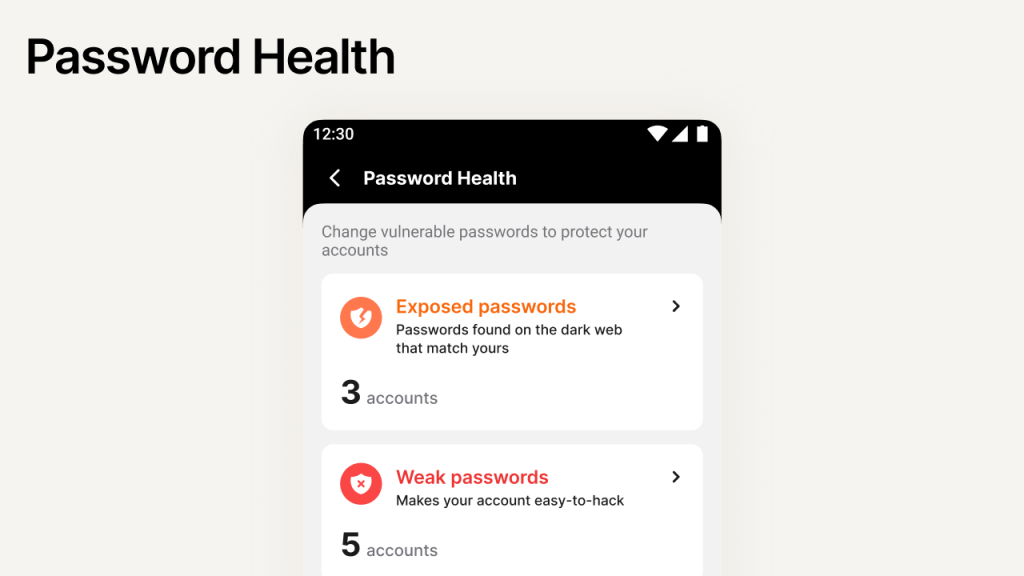
Example of a password manager identifying exposed and weak passwords across accounts.
Browser vs Dedicated Password Managers
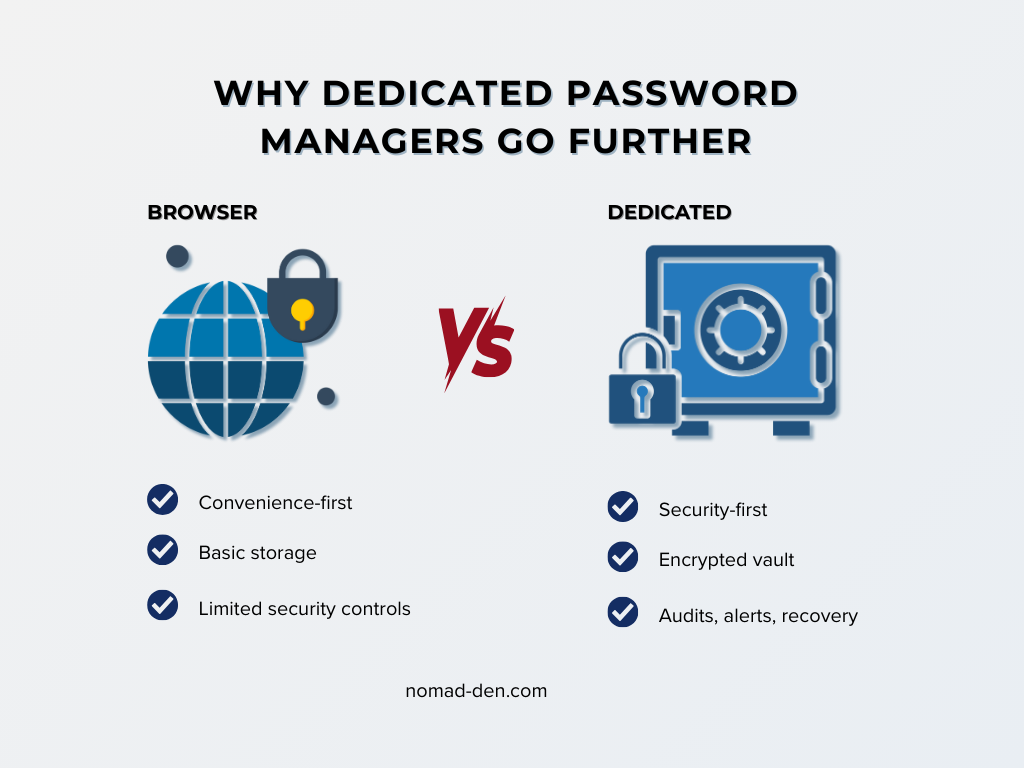
Most modern browsers — like those from Google, Apple, and Samsung — offer built-in password storage. For many users, this is the first form of “password management” they encounter, largely because it requires no setup and works automatically.
Browser Password Managers: Pros
- Convenience – Password saving and autofill are built in by default.
- No extra tools required – Works immediately with the browser or device ecosystem you’re already using.
Browser Password Managers: Cons
Despite their convenience, browser-based password managers come with trade-offs:
- Tied to a single ecosystem – Your passwords are closely linked to your browser, device, or account (such as Google or Apple), which can reduce flexibility if you switch platforms.
- Broader attack surface – Browsers handle many tasks beyond password storage, increasing the number of potential vectors for exploitation.
- Not designed as dedicated security tools – Password storage is a secondary feature — not the core focus — of browsers.
What Sets Dedicated Password Managers Apart
Dedicated password managers are built specifically to secure and manage login information. As a result, they typically offer:
- Security-first design – Encryption, vault design, and access controls are the primary focus.
- More control over your data – Options for password strength rules, sharing, recovery, and audits.
- Better transparency and auditing – Many leading tools undergo independent security audits or offer open-source components.
For users managing multiple accounts across devices, or anyone looking to improve security beyond basic convenience, dedicated password managers provide a more robust and flexible solution.
What Does a Password Manager Actually Do?
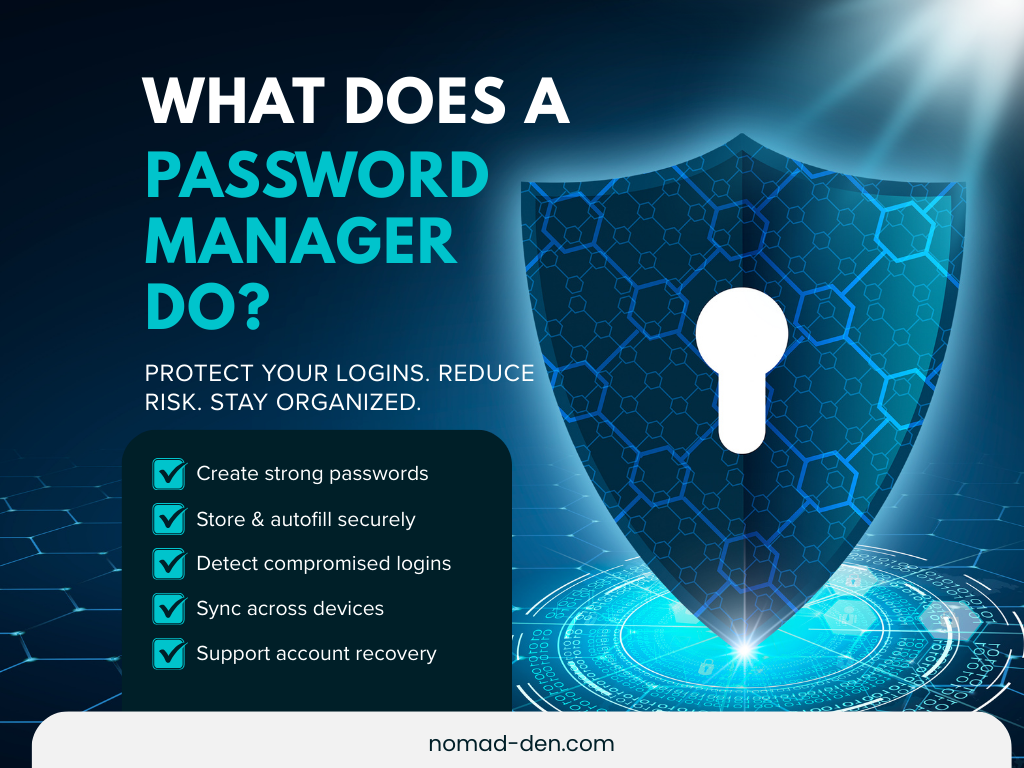
At its core, a password manager is designed to make it easier to stay secure online. Instead of relying on memory, insecure or unreliable shortcuts, it handles the most common password-related tasks automatically. Most password managers can:
- Generate strong, unique passwords – Creates long, random passwords for each account, reducing the risk caused by weak or reused logins
- Store and autofill securely – Saves your login information in an encrypted vault and fills it in automatically when you sign in.
- Alert you to compromised passwords – Notifies you if a saved password appears in a known data breach, allowing you to change it quickly.
- Sync across devices – Keeps your passwords available on your phone, tablet, and computer (depending on the plan).
- Support account recovery – Offers recovery options such as emergency access or recovery contacts, though features vary by provider.
Note: Some password managers support passkeys, a password-free sign-in method that uses device-based authentication instead of traditional passwords where supported.
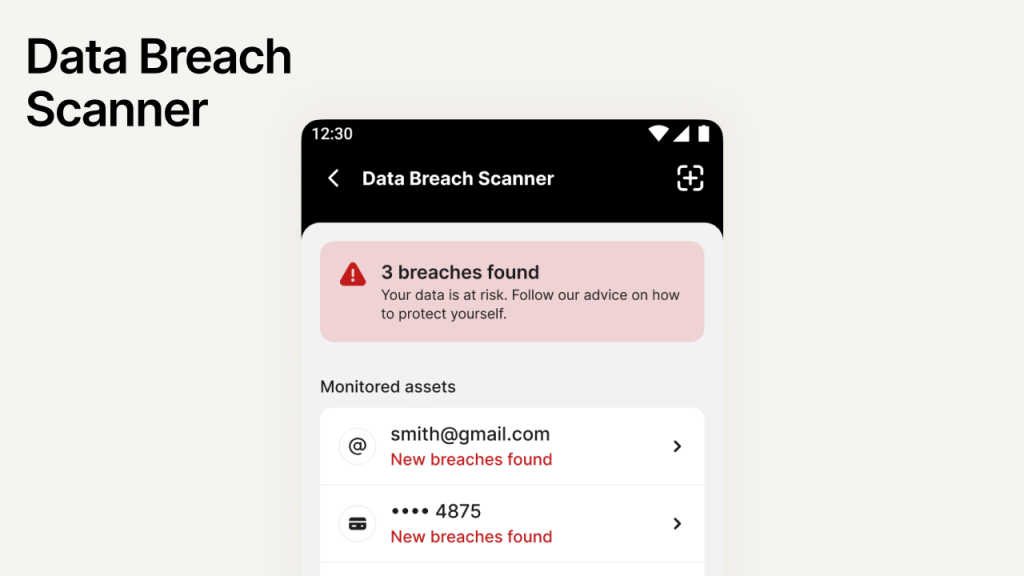
Password managers can alert users when monitored accounts appear in known data breaches.
How We Chose These Password Managers
With so many password managers available, it’s not practical — or helpful — to list every option. Instead, this guide focuses on tools that meet a clear set of criteria designed to balance security, reliability, and everyday use. We prioritized password managers that offer:
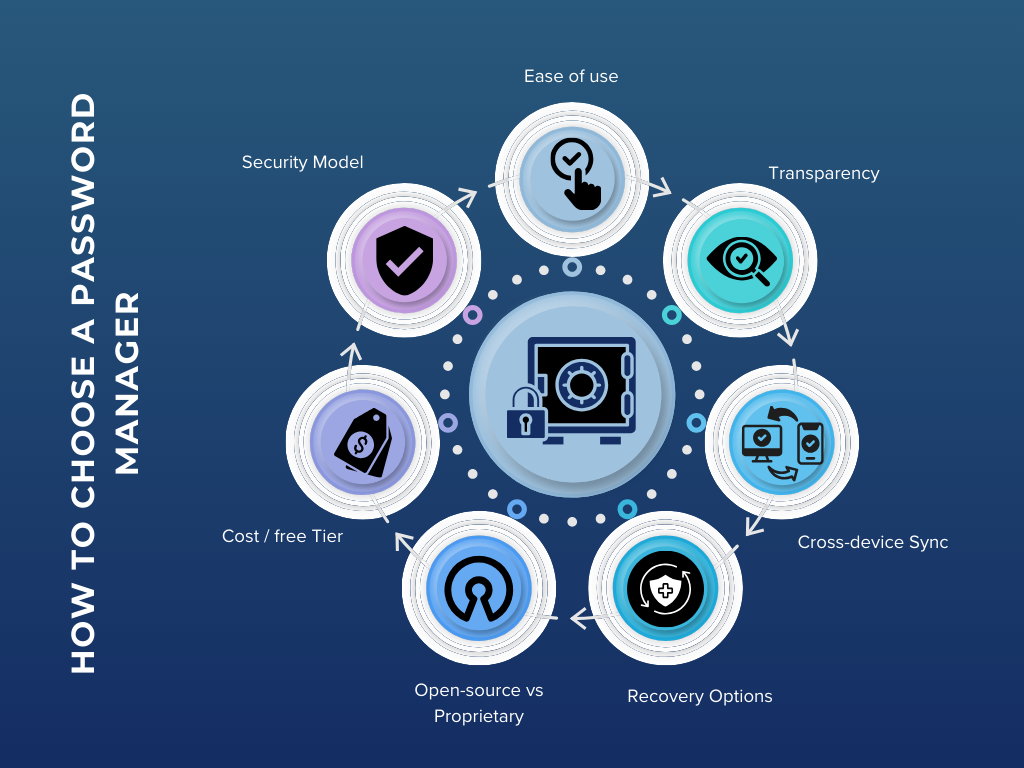
- A strong security model – Zero-knowledge architecture, modern encryption, and clear handling of sensitive data.
- Reputation and transparency – A track record of responsible security practices and openness about how the product works.
- Active development – Regular updates, ongoing support, and visible product improvements.
- Real-world usability – Tools that are practical for everyday use, not just technically impressive on paper.
This approach helps narrow the list to options that are both trustworthy and realistic for most users.
Notes on Other Popular Password Managers
Before reviewing the top picks, a few commonly mentioned password managers are worth brief context.
- LastPass was widely used, but multiple security incidents in recent years have raised long-term trust concerns1. While encryption limited immediate exposure, independent security analysis has made it harder to recommend LastPass for new users today.
- RoboForm remains functional and may suit longtime users, but its interface and feature set lag behind more modern password managers.
- KeePass is a respected open-source project, but the original version has a steeper learning curve and dated interface, making it less approachable for most beginners.
With those options covered for context, the sections below focus on password managers that currently offer the strongest balance of security, usability, and long-term reliability.
Best Password Managers (Top Picks)
The following password managers were selected based on security, usability, and reliability. Each section highlights who the tool is best for, its key strengths, and one limitation to provide clear context.
NordPass
Best for: Beginners and everyday users who want simplicity backed by a trusted security brand.
Key strengths: Clean interface, strong encryption, and seamless experience across devices.
One limitation: Fewer advanced customization options than some open-source alternatives.
If you’re looking for a beginner-friendly password manager with strong security fundamentals, NordPass is a solid place to start.
Bitwarden
Best for: Users who want transparency, flexibility, and a strong free tier.
Key strengths: Open-source design, excellent value, and broad platform support.
One limitation: Interface is more utilitarian than polished.
1Password
Best for: Professionals, teams, and families who prioritize ease of use and reliability.
Key strengths: Refined user experience, strong security practices, and robust sharing features.
One limitation: No permanent free plan.
Proton Pass
Best for: Privacy-focused users already invested in the Proton ecosystem.
Key strengths: Strong privacy stance, simple design, and tight integration with Proton services.
One limitation: Still maturing compared to more established password managers.
Keeper
Best for: Businesses or users who want enterprise-grade security features.
Key strengths: Strong security controls, compliance options, and wide organizational use.
One limitation: Can feel heavier than necessary for casual personal use.
Dashlane
Best for: Users who value a modern interface and built-in security tools.
Key strengths: Polished design, breach monitoring, and added security features.
One limitation: Pricing and feature limits may deter some users.
KeePassXC
Best for: Advanced users who want full local control over their password vault.
Key strengths: Open-source, offline storage, and no reliance on cloud services.
One limitation: Steeper learning curve than cloud-based alternatives.
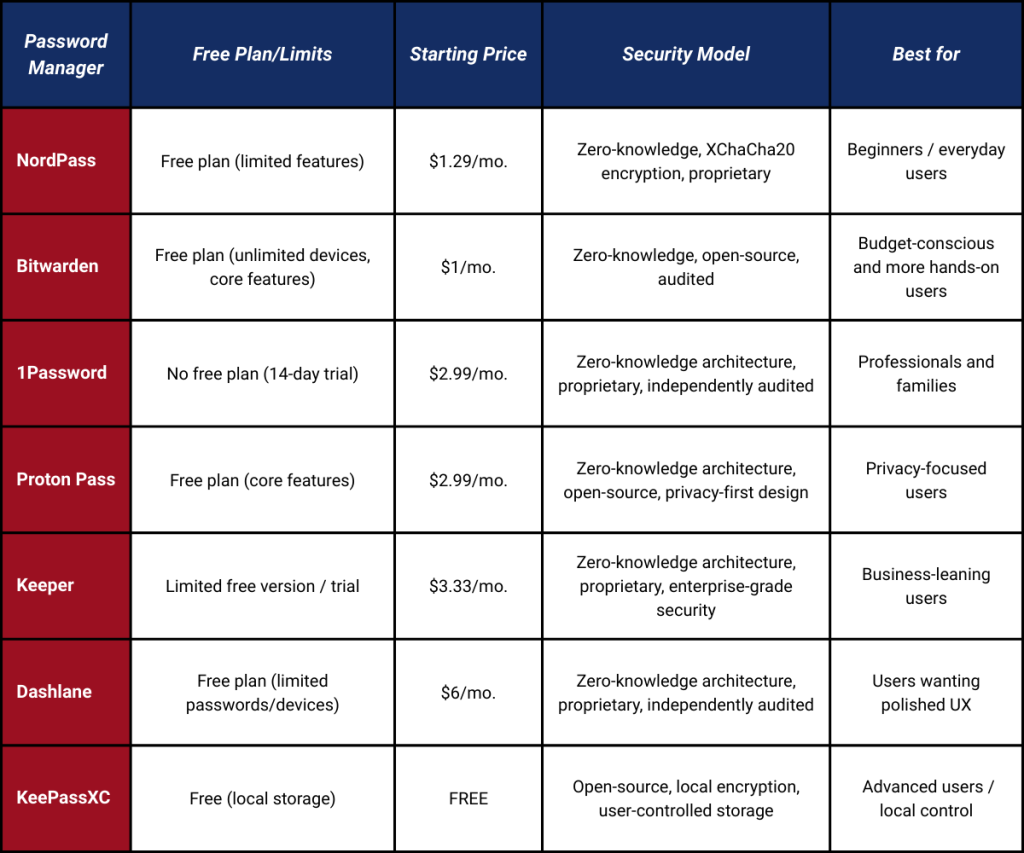
This table provides a concise, side-by-side comparison of the seven password managers discussed above, highlighting differences in features, pricing, and overall use cases.
Pricing note: Prices shown reflect personal or family plans (not business tiers) and were accurate at the time of publication. Pricing may change due to promotions or company policy. For current pricing, please verify directly with the provider.
For a simple starting point after comparing these options, NordPass is worth a closer look.
There is no single “best” password manager—only the best option for your threat model, workflow, and comfort level. The goal isn’t perfection, but choosing a reputable tool you’ll actually use consistently.
Frequently Asked Questions (FAQs)
Conclusion
Managing passwords securely has become a practical necessity, not an optional extra. With the number of accounts most people use today, relying on memory, browser storage, or reused passwords creates unnecessary risk that’s easy to avoid with the right tools.
The password managers covered here take different approaches, but all aim to solve the same core problem: making strong security habits easier to maintain in everyday use. Some prioritize simplicity, others focus on transparency, privacy, or greater control. The best choice depends on how you work, the devices you use, and how involved you want to be in managing your own security.
Starting with a trusted, easy-to-use password manager is often the biggest security upgrade most people can make.
Some links in this post may be affiliate links. I may earn a commission at no extra cost to you. Learn more here.
Continue Reading Related Posts
Private Browsers and Search Engines Worth Switching To
Google Chrome accounts for roughly 69% of the world’s web page views, and Google handles…
When to Start Outsourcing: How to Vet Your First Virtual Assistant (or Freelancer)
Outsourcing makes sense the moment a task is both teachable and consistently the thing standing…

17 Cybersecurity Terms Every Online Business Should Know (Part 2)
Cybersecurity terms for online business owners cover the threats, compliance requirements, and protective habits that…

Affiliate Marketing Scams: How to Spot Them (and Protect Your Own)
Affiliate marketing is a legitimate, commission-based business model, not a scam, that predates the internet…

Digital Nomad Visas in 2026: Requirements, Costs, and How to Apply Safely
A digital nomad visa is a temporary residency permit that lets you legally live in…
Is NordVPN Actually Worth It? Ownership, Audits, and Pricing Explained
NordVPN is the VPN provider most affiliate marketers default to recommending, but the research behind…