Some links in this post may be affiliate links. I may earn a commission at no extra cost to you.
Table of Contents
- What Is a Passkey?
- Passkeys vs. Passwords: Side-by-Side Comparison
- What Actually Changed in 2026
- Are Passkeys Safe? Where Passwords Still Hang On
- Passkey Scams to Watch For
- Which Business Accounts to Move to Passkeys First
- How to Set Up Passkeys Without Locking Yourself Out
- Where a Password Manager Fits Now
- FAQs
- Add the Passkey, Then Close the Back Doors
- Related Posts
Passkeys are safer than passwords for nearly every account, and in 2026 that stopped being a matter of opinion. The UK’s National Cyber Security Centre now tells people to use passkeys wherever they’re offered, Microsoft made them the default for work accounts in September, and the FIDO Alliance estimates about 5 billion passkeys are already in use.
What didn’t change is just as important. Most accounts that offer a passkey still keep a password, an email reset link, or a text-message code behind it, and attackers have already moved to those back doors. A passkey is only as strong as the weakest way back into the account.
This guide compares passkeys vs. passwords, walks through what changed this year and what didn’t, and shows which business accounts to move first without locking yourself out.
What Is a Passkey?
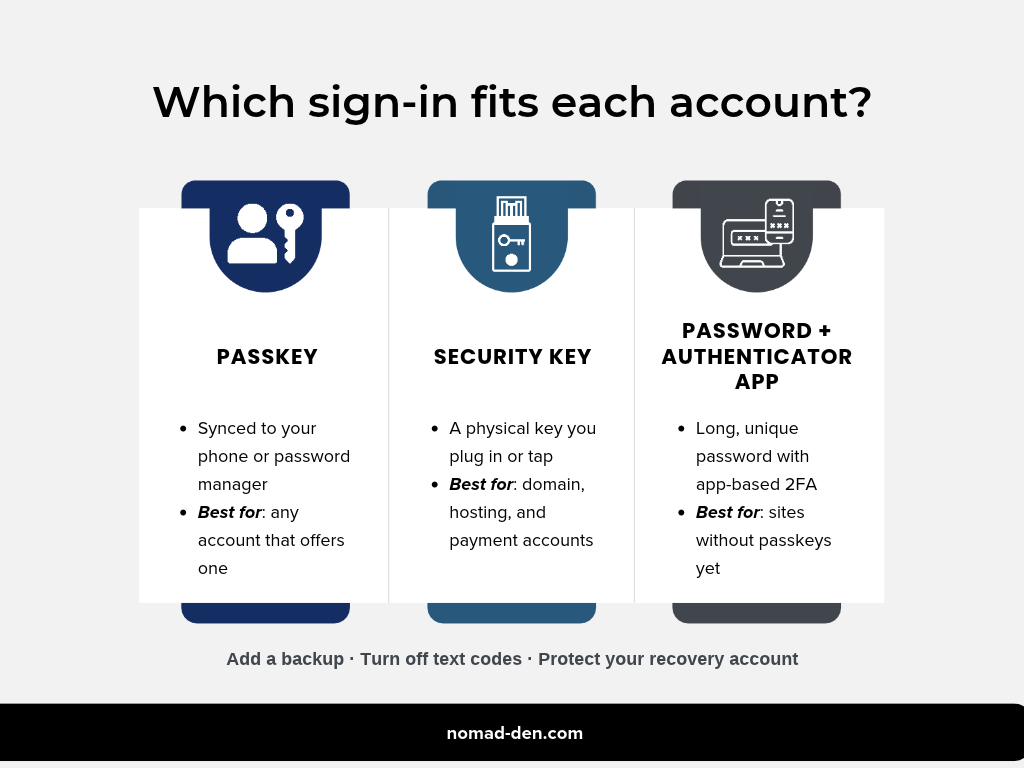
A passkey is a sign-in credential that replaces your password with a pair of cryptographic keys. The website keeps a public key, and the private key stays on your phone, computer, or password manager. You unlock it with your fingerprint, face, or device PIN, so there’s nothing to type or remember.
Passkeys are built on open standards from the FIDO Alliance and the W3C, which is why Apple, Google, Microsoft, and most password managers all support them. A passkey vs. password comparison comes down to one difference: a password is a secret you share with the website, and a passkey is a secret the website never sees.
How a Passkey Signs You In
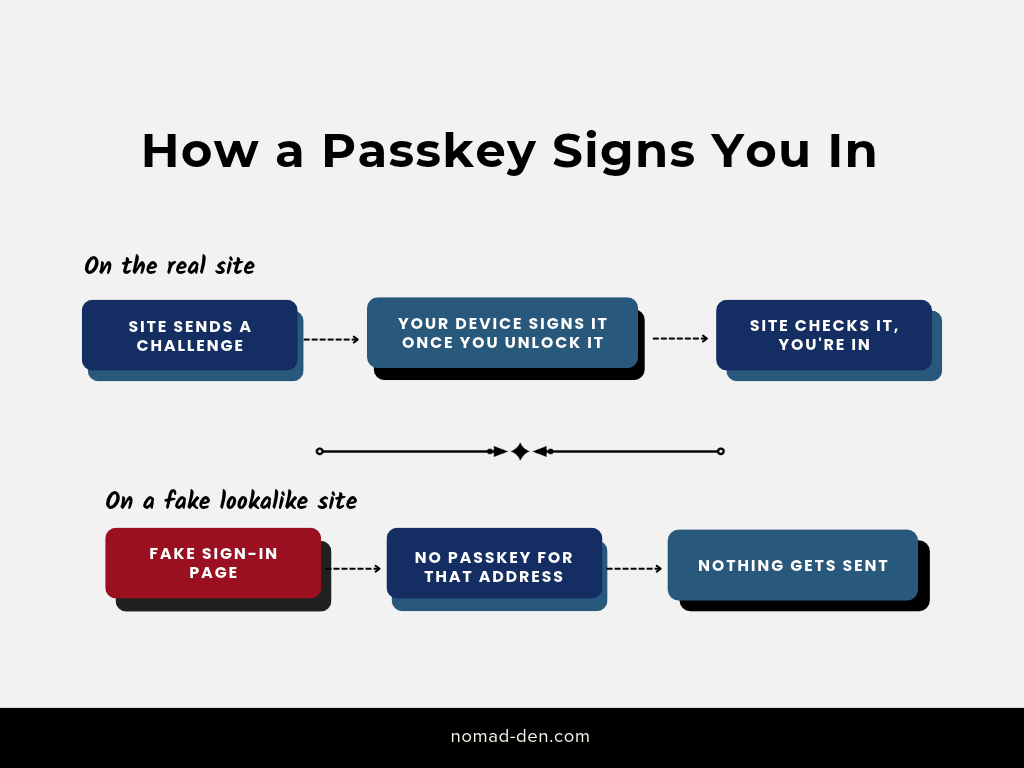
When you sign in, the website sends your device a one-time challenge. Your device signs it with the private key after you unlock it, and the site checks that signature against the public key it has on file. The private key never leaves your device, and your fingerprint or face data stays on the device too and is never shared with Google.
Each passkey is also locked to the website that created it. If a phishing page at a lookalike address asks you to sign in, your device has no passkey for that address, so nothing gets sent. A password works anywhere you type it, including on a fake page, and that’s the weakness passkeys remove.
Synced Passkeys vs. Device-Bound Passkeys
Most passkeys today are synced. They’re backed up to your Apple, Google, or Microsoft account or to a password manager, so they appear on your other devices and survive a lost phone.
A device-bound passkey lives on one piece of hardware, usually a small security key you plug into a USB port or tap against your phone, and it can’t be copied. NIST’s updated guidelines accept synced passkeys as phishing-resistant for everyday accounts (its AAL2 level) but require keys that can’t be exported for its highest level, AAL3.
For most people, synced passkeys are the right default. A hardware key makes sense as a backup for the accounts that would hurt most to lose, like your domain registrar or payment processor.
Passkeys vs. Passwords: Side-by-Side Comparison
Passkeys beat passwords on every common attack, and passwords still win on how many sites accept them. The table shows where each one stands in 2026.
| Password | Passkey | |
|---|---|---|
| Phishing | Can be typed into a fake site | Won’t work on a site it wasn’t created for |
| Reuse | Often reused across sites | Unique to each site by design |
| Website data breach | Stolen hashes can be cracked and reused | Site stores only a public key, useless to an attacker |
| Guessing and credential stuffing | Possible | Not possible |
| Signing in | Type it, then often a 2FA code | Fingerprint, face, or PIN |
| Account recovery | Reset by email or text message | Synced backup, or the account’s recovery options |
| Moving to another app | Export file or manual entry | Direct transfer on some platforms; not every app supports it yet |
| Sharing with a VA | Easy, and risky | Not built for sharing; separate logins work better |
| Site support | Nearly everywhere | Growing quickly, not universal |
The trade-off is coverage and recovery, not security. Use a passkey wherever it’s offered, and keep a password manager for the sites that haven’t caught up.
What Actually Changed in 2026
In 2026, passkeys moved from optional to default. Security agencies now recommend passkeys outright, Microsoft pushed passkeys to the front of sign-in, and passkey use passed a third of sign-ins at major services. A few of these changes landed in late 2025 and took effect this year, so the dates below say which is which.
Security Agencies Now Recommend Passkeys
In January 2025, the NCSC wrote that it wasn’t ready to recommend passkeys for mass adoption, citing account recovery, moving passkeys between providers, and shared devices. On April 23, 2026, it updated its guidance and no longer recommends passwords where passkeys are available. Its technical report found passkeys at least as secure as the strongest password paired with two-step verification.
US guidance points the same way. CISA calls FIDO-based sign-in the only widely available phishing-resistant authentication, and NIST’s final digital identity guidelines (July 2025) treat properly built synced passkeys as phishing-resistant.
NIST also rewrote the password rules: at least 15 characters when a password is used on its own, no forced mix of symbols and numbers, and no mandatory changes unless there’s evidence of a breach. Passwords aren’t banned; the bar for them was raised.
Passkeys Became the Default
Microsoft made new personal accounts passwordless by default in May 2025, and existing users can delete their password entirely. Microsoft reported that passkey sign-ins succeed about 98% of the time, compared with about 32% for passwords.
For work accounts, Microsoft Entra ID (the sign-in system behind work and school Microsoft 365 accounts) began making passkeys the default on September 1, 2026, with registration prompts admins can’t turn off. Microsoft’s own text-message and voice codes for Entra end on February 1, 2027. If you sign in to a client’s Microsoft 365 with a text code, expect a passkey prompt soon.
Google made passkeys the default sign-in option for personal accounts in 2023. It still recommends keeping 2-Step Verification on alongside a passkey, so the account stays protected if someone claims to have lost theirs.
Moving Passkeys Became Possible (Mostly)
Being stuck with one company’s passkeys was a real objection until recently. The FIDO Alliance published a standard format for moving passkeys between apps in August 2025. Apple’s iOS 26 and macOS 26 then added direct passkey transfers to other participating credential managers, protected by Face ID and without creating an unencrypted export file.
On Windows 11, you can now save a passkey to Windows Hello, Microsoft Password Manager, a phone, a security key, or a third-party manager like 1Password.
Some password managers still can’t move passkeys at all. NordPass, for example, stores them but says there’s currently no option to import or export them.
Passkey Use Passed a Third of Sign-Ins
The FIDO Alliance’s April 2026 survey of 11,000 people in ten countries found 90% had heard of passkeys and 75% had turned one on for at least one account. One in three had an account compromised or received a breach notice in the past year.
Its October Passkey Index, built from data shared by 15 companies including Amazon, Google, Microsoft, PayPal, and Shopify, found 36% of successful sign-ins in 2026 used a passkey, up from 26% in 2025. Passkey sign-ins succeeded 93% of the time, compared with 78% for passwords and traditional multi-factor sign-in, and saved about 27 seconds each.
Are Passkeys Safe? Where Passwords Still Hang On
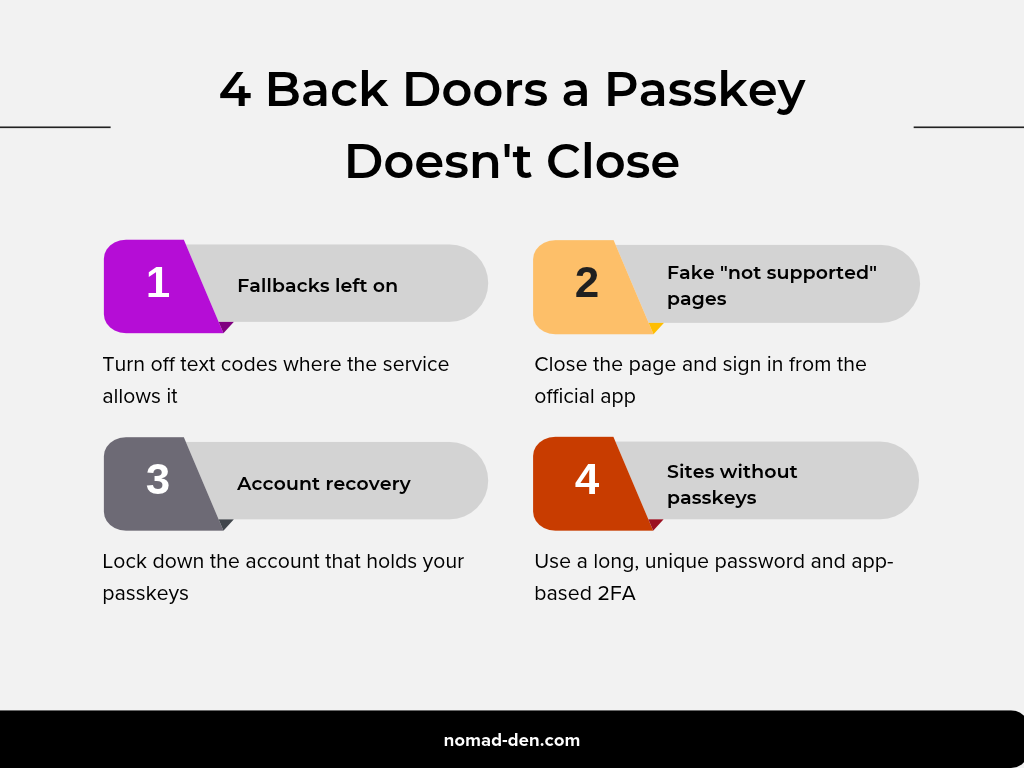
Passkeys are safe, but adding one rarely removes the password behind it. Most accounts keep the old password, an email reset link, or a text-message code as a fallback, and an attacker only needs one way in. Here’s what didn’t change:
- Fallbacks stay on. Adding a passkey usually leaves your password and text codes active until you remove them.
- Downgrade tricks exist. Proofpoint researchers showed a phishing kit can fake a “not supported” error and push you to a weaker sign-in method. It hasn’t been seen in real attacks, and it only works when another method is still on the account.
- Recovery is the new target. Synced passkeys are only as safe as the Apple, Google, Microsoft, or password manager account that holds them.
- Many sites still lack support. Plenty of the tools a small business runs on offer only a password and a 2FA code.
Stolen logins also aren’t the only way in. Verizon’s 2026 Data Breach Investigations Report found credential abuse was the first step in 13% of breaches, down from 22%, while exploited software flaws rose to 31%. Stolen credentials still showed up somewhere in 39% of breaches, so passkeys close a big door, and updates and backups cover the rest.
Passkey Scams to Watch For
Scammers now use passkey setup as the excuse to contact you. Since May 2026, Microsoft has tracked attackers who call or text employees while posing as IT support, claim a passkey or MFA setting needs updating, and send them to a fake Microsoft sign-in page.
The passkey usually isn’t the real goal. The fake page captures the password and the session, or tricks the person into approving a sign-in code for the attacker’s device. Then the attacker adds their own sign-in method so they can come back.
- An unexpected call or text about your passkey or MFA. Do this instead: hang up and open the account’s security settings yourself, from the app or a saved bookmark.
- A link to “finish setting up” a passkey. Do this instead: set up passkeys only from inside the account’s own settings or a prompt during a normal sign-in you started.
- A request to enter a code someone gives you. Do this instead: never type a code that didn’t come from a sign-in you began yourself.
- A sign-in page that suddenly says passkeys aren’t supported. Do this instead: close it and sign in through the official app or your bookmark.
Freelancers who sign in to client systems get these calls too, since attackers often target personal phone numbers. For more patterns like this, see our guide to remote work scams.
Which Business Accounts to Move to Passkeys First
Start with the accounts that control money and recovery: your main email, payment processor, domain registrar, and web hosting. A takeover of any one of them can be used to reset or redirect the rest.
I checked the main accounts Nomad Den runs on. Only two of the seven below offer passkeys, but all of them support two-step verification, and most offer a backup code or recovery email. Here’s what I found:
| Account | Passkey offered? | Two-step verification | Backup option |
|---|---|---|---|
| Yes | Yes | Recovery email | |
| Hosting.com / WordPress admin | No | Yes | Emailed code at every sign-in |
| Systeme.io | No | Yes | Not offered |
| Canva | Yes | Yes | Recovery email |
| No | Yes | Backup code | |
| Awin | No | Yes | Recovery code |
| FirstPromoter | No | Yes | Recovery code |
Passkeys are still rare on the tools small businesses use, so two-step verification and a saved backup code are what protect most of these accounts today.
Accounts That Control Money and Recovery
These four come first because each one can unlock the others:
- Main email, where the reset link for nearly every other account lands
- Payment processor and business bank, where the money moves
- Domain registrar, since whoever controls the domain controls your site and your email address
- Web hosting and WordPress admin, which hold your site and often your backups
Once these have a passkey, remove the text-message fallback where the service allows it and keep an authenticator app or a second passkey instead. If your main inbox is the weak point, our comparison of secure email providers covers what to switch to.
Shared Accounts, VAs, and Contractors
A passkey isn’t something you can text to a virtual assistant. It lives on your device or in your password manager and unlocks with your face, fingerprint, or PIN, which is the point.
When someone else needs access, give them their own user login wherever the tool offers one, so you can remove their access without changing yours. Some managers, including NordPass, let you share a passkey like other vault items, but a separate login is still easier to revoke. For the hiring side, see how to vet your first virtual assistant.
How to Set Up Passkeys Without Locking Yourself Out
The safest setup gives you two ways in that you control and none that a stranger can talk their way into. Add the passkey, add a backup, then trim the fallbacks you don’t need.
- Pick where your passkeys live. One home is easier to protect: Apple Passwords, Google Password Manager, Microsoft Password Manager, or a password manager that works on all your devices.
- Lock down that account first. It holds every passkey, so give it a passkey, a strong password, and saved recovery codes.
- Add a second passkey or a security key to the accounts that matter most, so one lost device doesn’t lock you out.
- Store recovery codes offline, somewhere other than the device they protect.
- Keep two-step verification on, as Google recommends, and switch it from text messages to an authenticator app where you can. Here’s how to set up 2FA on your email.
- Remove text-message codes where the service allows it. CISA calls SMS a last-resort option.
- Test on a second device by signing in from another phone or computer before you need to.
Do this once for each important account, and a lost phone becomes an inconvenience instead of a lockout.
Where a Password Manager Fits Now
A password manager is still the right tool for accounts that don’t support passkeys yet, and it can hold your passkeys too. It’s most useful if you mix ecosystems, like a Windows laptop with an Android phone or an iPhone with a work PC. A good password manager should now do three things:
- Create and store long, unique passwords for sites without passkeys
- Store and sync passkeys across every device you use
- Move your passkeys out if you switch managers later
The third one is where products differ most right now, so check it before you choose. Our password manager comparison covers the main options.
NordPass
NordPass is one of the password managers I recommend most on Nomad Den, and it handles passkeys on every major platform. Here’s how it measures against the three things above:
- Stores passkeys alongside passwords and syncs them across your devices
- Lets you share passkeys like other vault items
- No passkey import or export yet, according to its support page
NordPass fits people who want one app for passwords and passkeys across Windows, Android, and iPhone. If you expect to switch managers later, check its import and export status first, since passkeys can’t be moved out yet. One app for every password and passkey, on every device you use. Get NordPass for all your devices.
FAQs
Add the Passkey, Then Close the Back Doors
Passkeys won the security argument in 2026. The UK’s NCSC now puts them first, Microsoft made them the default for work accounts, and more than a third of sign-ins at participating services already use one. Against phishing, reuse, and data breaches, a passkey beats even a strong password.
What a passkey doesn’t fix is everything left behind it. It’s only as strong as the weakest way back into the account, so the real work is closing the back doors: leftover passwords, text-message codes, and a poorly protected recovery inbox.
Start with the accounts that control your money and recovery, add a backup passkey or security key, and keep a password manager for every site that hasn’t caught up. Your main email is the best place to begin.
Lock down your email account first.
Some links in this post may be affiliate links. I may earn a commission at no extra cost to you. Learn more here.
Related Posts
Private Google Drive Alternatives for Freelancers (Tested)
A private Google Drive alternative encrypts your files on your own device before they upload,…
Secure Email Providers Worth Switching To
Secure email providers keep your inbox from being scanned, profiled, or read by the company…

Saily vs. Simbye eSIM: Which Should Digital Nomads Choose?
Simbye provided its eSIM free for testing, and Saily’s affiliate team provided a free 1…

WordPress PHP Version: How to Check It After PHP2Shell
PHP2Shell is a pair of critical security flaws in PHP, the software every WordPress site…
Freelance Scams: How to Spot a Fake Client Before It Costs You
A fake-client scam is when someone poses as a paying client to take your money,…

Best Free Tools for Content Creators (and What They Really Cost)
The best free tools for content creators cover four main jobs: planning what to make,…