
Some links in this post may be affiliate links. I may earn a commission at no extra cost to you.
WordPress is a free, open-source content management system (CMS) that powers more of the internet than any other platform, used by roughly 43% of all websites. Despite occasional claims that newer platforms are replacing it, WordPress continues to grow, and its market share has more than doubled since 2014. Since launching in 2003, it has earned its reputation through reliability, performance, and user control; allowing anyone to manage their own content with ease and security.
WordPress offers more flexibility than any other platform at this scale, letting you build anything from a simple blog to a full e-commerce store without touching a single line of code. For content creators, affiliate marketers, and online entrepreneurs in particular, it remains the most practical foundation available.
Building the Structure of Your Site
The first thing you need to do before setting up your WordPress website is choose whether you’ll use free WordPress hosting (as an option with WordPress.com) or the self-hosted version (WordPress.org). The hosted option is great for learning or testing, but it comes with limitations: you can’t install plugins or use a custom domain unless you upgrade.
For full control and scalability, most online entrepreneurs purchase hosting from a reliable provider that offers WordPress integration, such as Hosting.com or SiteGround. This allows you to use your own domain, install essential plugins, and customize your site without restrictions.
Personally, I recommend Hosting.com. It makes it simple with one-click WordPress installation, fast servers, competitively priced plans. It is what I use, and is one of the fastest and most affordable hosting providers available.


Not sure how to handle DNS, SSL, or domain setup? Essential Tech Tasks Made Easy breaks down the technical side of getting your site online.
Pro Tip: Not all hosting providers are created equal. Before committing, compare speed, uptime, and support quality, especially if you plan to scale your site later. Check out my Hosting Comparison Guide to see which option best fits your business goals.
How to Install a WordPress Theme
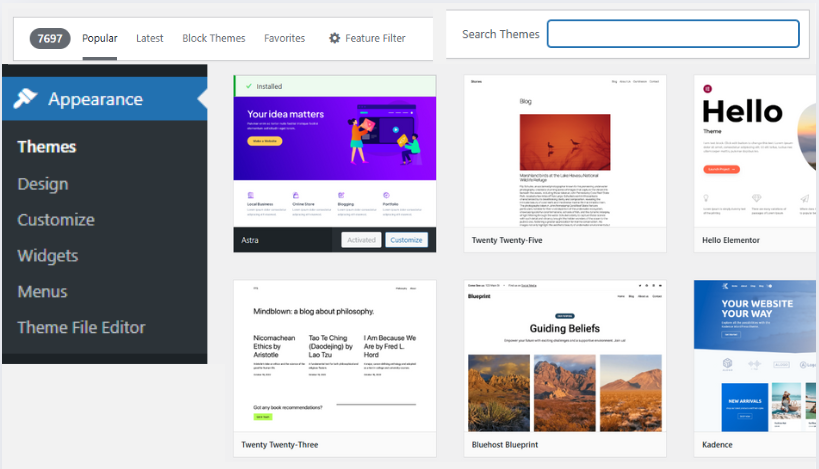
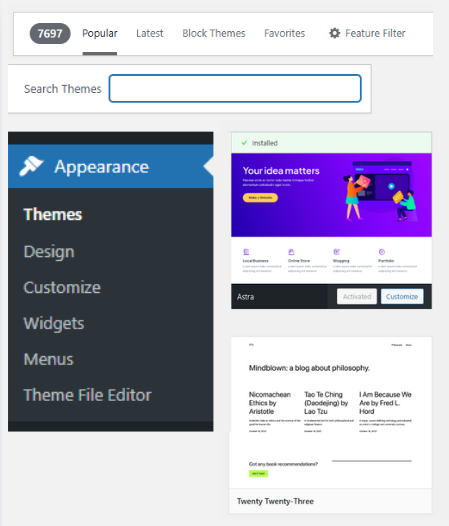
Themes provide the overall design, layout, colors, and fonts for a website, functioning as a collection of files that control how the website’s content is presented to users. There are thousands of themes to choose from, including over 14,000 free themes from the WordPress theme directory. Below is a collection of screenshots from the WordPress dashboard that will help guide you.
Along with your theme, choose fonts, colors, and consistent visuals to establish your brand identity. Consistency across your site builds familiarity with your audience over time.
Looking to build your brand visuals? Canva has a free Brand Kit feature where you can experiment with fonts, colors, and design combinations before applying them to your site.
Structuring Appearance and Navigation
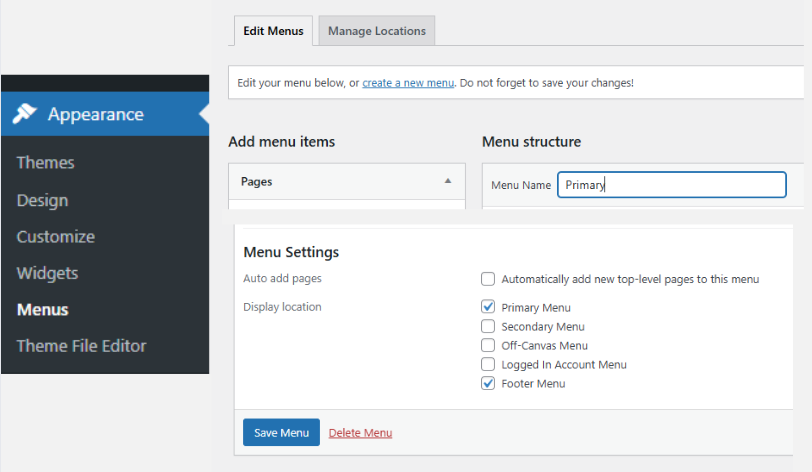
Every website has a core menu structure, usually at the top (Header) and bottom (Footer). The Header typically includes the Main Menu and Navigation, with Top-Level pages, while the Footer contains secondary links, legal pages, and social profiles. These are the most common pages in each, and their purpose:
- Header
- Home – provides an easy way for visitors to return to the homepage
- About – builds trust and connection by telling your story, sharing your mission and values, and giving context on your history or team
- Blog – most websites have a blog to generate organic traffic, and connect with their audience through regular articles
- Contact – offers a direct way to reach you; this link can also appear in the footer
- Footer
- Legal – includes pages like Privacy Policy, Terms of Service, Legal Compliance, and Disclaimers
- Social Links – provides alternate ways for visitors to connect with your business
- Affiliate/Partner/Referral Program – if your website or company offers one, it’s typically featured here
Menus are accessed from the same Appearance section and use a simple drag-and-drop editor, letting you move pages into place without any coding.
Configuration Settings
Before you begin publishing content, it’s important to review a few key WordPress configuration settings. These settings help define how your site is organized, how your URLs appear, and how visitors interact with your content.
Categories and Tags
Categories and tags help organize your content and make it easier for both readers and search engines to navigate your site. Categories represent broad topics, while tags describe specific details within those topics. For example, a post categorized under Digital Marketing might include tags like SEO, Content Creation, or Email Marketing. Clear organization not only improves user experience (UX) but can also help improve your SEO ranking.
For a deeper look at how site structure affects your search rankings, see our SEO Resources.
Permalinks and URL Structure
Permalinks are permanent links; static URLs that connect directly to a specific piece of content. Setting up clean and descriptive URLs helps build credibility and supports SEO. A simple example of a clean URL would look like: yoursite.com/blog/article. A clear URL hierarchy keeps everything organized for both you and your visitors.
Comments Section
Adding a comments section at the bottom of your posts encourages readers to engage with your content. It provides an opportunity for readers to ask questions, share thoughts, and connect with you, which builds trust and authority over time.
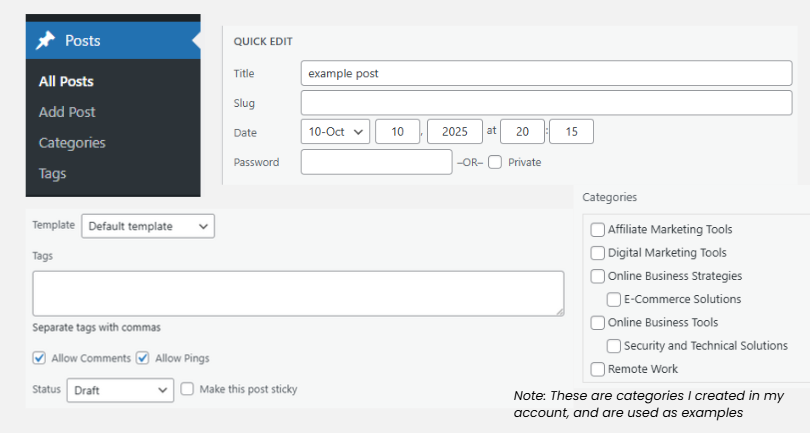
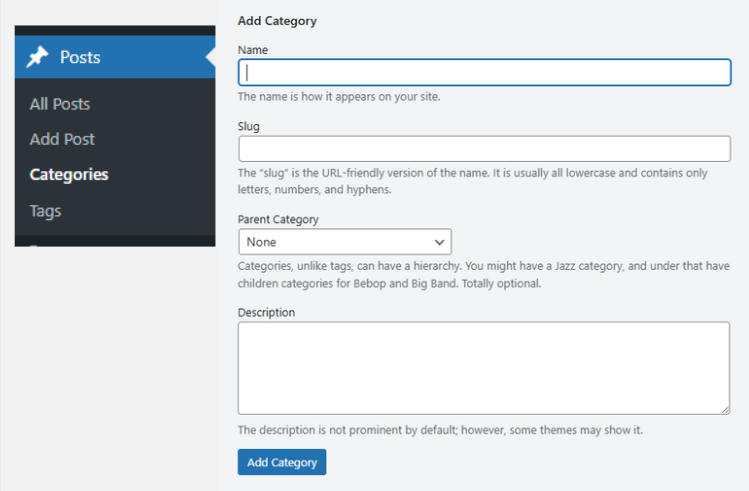
Tip: Both Categories and Tags include optional description fields. Adding short, keyword-relevant descriptions can help search engines better understand your content.
Installing Recommended Plugins
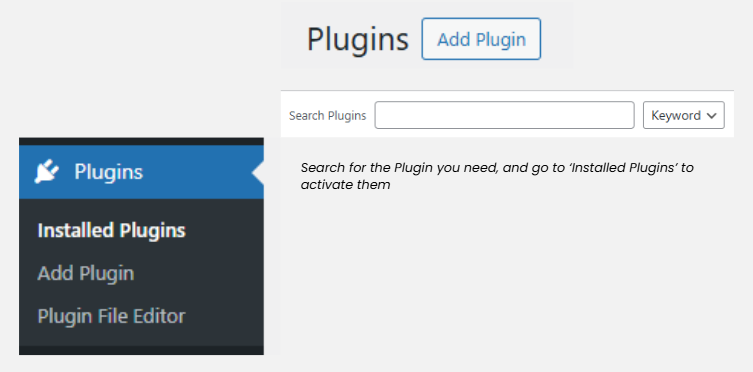
Installing plugins in your WordPress website is essential as they will extend your site’s functionality, improving SEO, security, performance, design, and backups. Just like themes, there are thousands of plugins available. However, it is best to activate only those that you really need for your business and goals. Too many plugins can slow down your site and increase load times. Below are some of the best WordPress plugins for beginners, by category:
- SEO is essential for driving organic traffic, visibility, and brand awareness. Yoast, All-in-One SEO (AIOSEO), and Rank Math are the top WordPress SEO plugins. Personally, I use and recommend All-in-One SEO, the plugin that powers the SEO on this site.
- Security is more critical than ever, with cybercrime projected to exceed $10.5 trillion annually. Choose one reliable plugin that offers a full security suite to protect your site; using multiple can cause conflicts. Tools like WordFence, Really Simple Security, and All-in-One Security are excellent options to keep your website safe.
- For a broader look at protecting your online presence, see our Cybersecurity for Digital Nomads guide.
- Performance plugins are designed to optimize various aspects of your website to improve its loading speed and overall performance. LiteSpeed Cache, WP Optimize, and Jetpack are among the best performers here.
- Backups are essential for protecting your site’s data from crashes, hacks, or accidental loss. Automated backup plugins make this process simple and reliable. Try UpdraftPlus, Duplicator, or BackWPup to safeguard your website and minimize downtime.
- Design/Block Editor tools let you customize your website’s layout, colors, and overall look with ease. Drag-and-drop website builders make design accessible to everyone, without the need for code. Top options include Elementor, Spectra, and Starter Templates for fast, professional results.
Website Optimization and Tracking
Once your site is set up, the next step is connecting analytics tools to monitor traffic and understand how your audience interacts with your content. Since Google handles roughly 90% of global searches, its free tools remain the best for measuring site performance, visitor behavior, and engagement.
Google Search Console
Google Search Console helps you see how your site performs in their search results and identify any issues affecting visibility or crawlability. It also includes diagnostic tools to help you troubleshoot performance errors. Plugins like AIOSEO can help you connect your site to GSC directly from your dashboard.
Google Analytics
Google Analytics tracks user activity and site traffic, providing insights that help you refine your content and marketing strategies. You can connect GA4 to your WordPress site by installing a code snippet plugin like WPCode and adding your tracking code directly, without adding another plugin to your stack.
Frequently Asked Questions about WordPress
Conclusion
WordPress gives you full ownership of your site, your content, and your data. The learning curve is real, but every step you work through builds skills that make you a more capable and independent creator. The time you invest in understanding your own platform is time that compounds; no algorithm change or platform shutdown can take that away from you.
Some links in this post may be affiliate links. I may earn a commission at no extra cost to you. Learn more here.
Continue Reading Related Posts

Email & Account Security: Guard Your Data Online
With an astounding 392.5 billion emails sent and received every day by well over 4…
Digital vs. Physical Products: Which E-Commerce Path Is Right for You?
E-commerce lets you sell products and generate income online without a physical storefront, set hours,…
Essential Tech Tasks for Online Business Owners, Made Easy
The core technical tasks every online business owner runs into, including DNS setup, SSL certificates,…
Top 5 Tools Every Online Business Owner Needs
Most online businesses are built on five foundational tool categories: a domain and hosting, a…
Hosting.com Review: Why Website Speed Matters
Web hosting speed, specifically how quickly your site responds and fully loads, directly affects conversions,…
7 Best Hosting Providers Compared for 2026
A domain is your website’s address, and web hosting is the service that stores your…