
Some links in this post may be affiliate links. I may earn a commission at no extra cost to you.
Table of Contents
The best free tools for content creators cover four main jobs: planning what to make, creating it, publishing it, and protecting the accounts and content you build. Most generic tool lists cover the first three, but the fourth is the one that decides whether your work still belongs to you a year from now.
The money behind creator content keeps growing, and so does the incentive to steal it. The IAB (Interactive Advertising Bureau) projects that U.S. creator ad spend will reach $44 billion in 2026, according to its 2025 Creator Economy Ad Spend & Strategy Report. The same research found that 58% of brands rank creator reputation as their top criterion when choosing a creator to work with. A hacked channel or a comment section full of scams damages that reputation.
If you’re still setting up your online business and don’t have a landing page or email list yet, start with The Only Free Tools You Need to Launch. This post picks up after launch, once you’re publishing regularly and need tools that keep up. I use several of these in my own workflow, including Systeme.io, Canva, and CapCut, and I’ll point out where my experience differs from the marketing.
What Makes a Free Tool Usable Long Term
A free tool is only useful if you can keep relying on it after the first few weeks. You often get what you pay for, which means free tools are typically limited in their function and capability. Also, plenty of “free” plans are really just trial periods, or they quietly move features behind a paywall once you depend on them.
Before adding any tool to your workflow, check four things. First, the free tier should have no expiration date. Second, you should be able to export your work if you leave. Third, the account should support two-factor authentication (2FA) to protect what you’re building. Fourth, you should know what you’re giving up in place of money, whether that’s rights to your content, data for AI training, or access to another account. Every tool below passes at least the first test. Where a tool falls short on the others, I’ll say so.
Plan: Content Ideas and Keyword Research
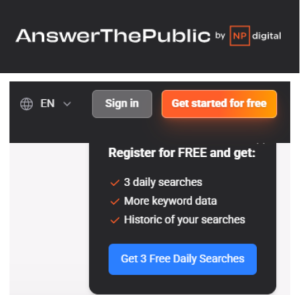
Once you’re publishing regularly, the platform search bar alone stops giving you enough ideas. That’s the point where a few free research tools earn a place in your routine. AnswerThePublic turns a single keyword into the questions people are typing into search engines. A free account allows 3 searches per day, which is enough to plan one piece of content per day without paying.
Google Trends shows whether interest in a topic is rising, falling, or seasonal, so you don’t publish into a dying trend. Pinterest Trends does the same for Pinterest searches, which helps because Pinterest users plan ahead and search for seasonal content weeks early. If Pinterest is part of your traffic plan, How to Make Money on Pinterest covers how to turn those trends into pins.
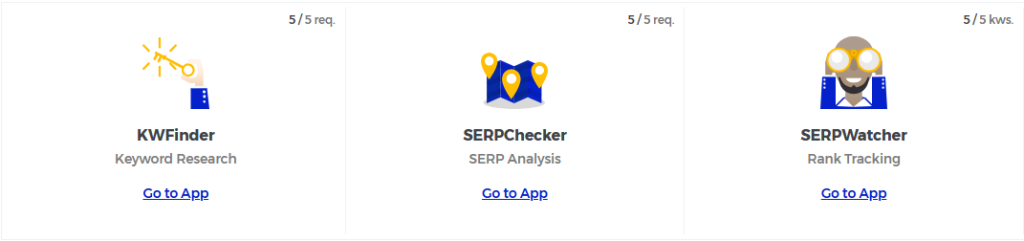
For keyword data, Mangools gives you a free account with a small allowance across its main apps: 5 searches each in KWFinder and SERPChecker, 5 tracked keywords in SERPWatcher, and 2 SiteProfiler checks. It also includes free mini SEO tools like a SERP Simulator and an AI Search Grader. It’s what I reach for when I want search volume and difficulty without opening a paid subscription. For the full research process, see Keyword Research for Beginners and SEO Tools for Beginners (Free + Paid).
Create: Design, Video, and Audio
Creating is where free tools differ the most, because the free tier often decides what you can export and what the company can do with your work. The tools below cover thumbnails and graphics, short- and long-form video, and audio cleanup. For each one, I’ve noted what the free version allows and what you give up to use it. If you’re just getting started, What Is Content Creation? covers the basics before you pick your tools.
Canva
- Templates for thumbnails, video covers, pins, and channel art
- Free plan includes commercial use of designs you make
- Multi-factor authentication available in your profile’s account and security settings
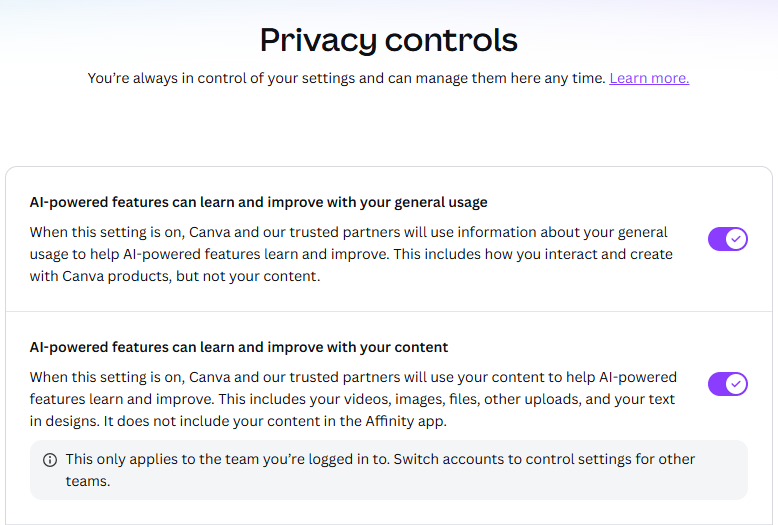
Canva is the fastest way to make thumbnails and video covers that look consistent without design experience. I build every featured image on this site in Canva, and the free plan handled that for a long time before I needed anything more. Before you upload anything personal, check your privacy settings. Canva states that it won’t use your content to improve its AI features unless your privacy settings allow it.
Canva has two separate AI settings: one for how you use the app, and one for your actual content, including videos, images, uploads, and the text in your designs. Both are on in my account, and I’ve left them that way. The content setting also shares your uploads with Canva’s “trusted partners,” so check it under Settings, then Privacy controls, and decide what you’re comfortable with. If you belong to more than one Canva team, each team has its own settings.
CapCut
- Large template library built around trending sounds and formats
- Fast mobile editing with automatic captions
- Direct posting to TikTok, Instagram, and others
- Desktop app needs Windows 10 and 4 GB of memory at minimum, so older computers will run it slower
CapCut is still one of the quickest ways to edit short-form video, but its free tier keeps shrinking. CapCut’s own help center explains that some features launch as limited-time free trials and move into the paid Pro tier once the trial ends. If you build a project with an effect that later becomes Pro-only, you may not be able to export it without paying.
Before you upload anything, read the terms. CapCut’s terms say it doesn’t own your content, but by submitting content through the app, you grant TikTok USDS Joint Venture, its affiliates, partners, and other connected third parties an unconditional, perpetual, worldwide, royalty-free, sub-licensable, and fully transferable license to use it. Its privacy policy also says it may upload your content before you save or post it. My rule: treat anything you edit in CapCut as shared, and keep client work and unreleased paid content out of it.

Instagram Edits
- Free, with no subscription or premium tier
- Exports up to 4K at 60fps, in SDR or HDR, with no watermark
- Built-in Instagram performance insights
Edits is Meta’s free answer to CapCut, and for Instagram-first creators it removes the watermark and paywall problem entirely. For the best playback on Instagram, Meta’s own creator team recommends exporting at 2K, HDR, and 60fps. The tradeoff is access: you have to log in with your Instagram account to use the app. Your editor and your audience now share one login, so the security of that Instagram account matters even more.
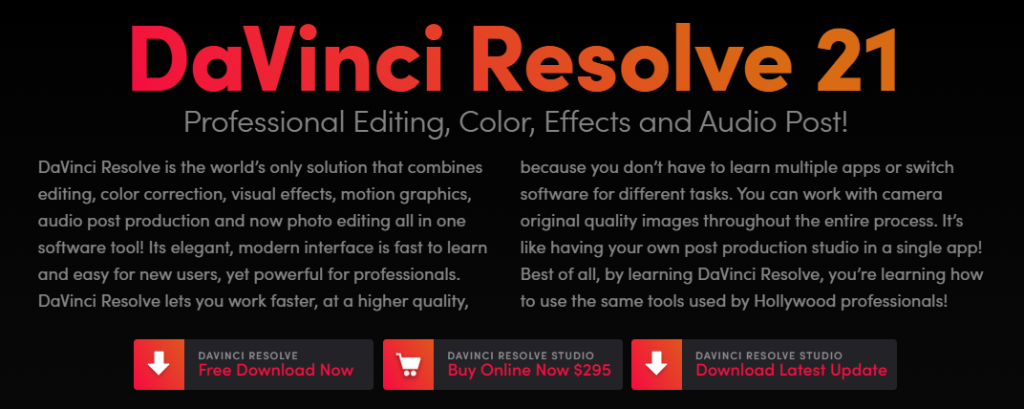
DaVinci Resolve
- Free version exports up to Ultra HD (3840 x 2160) with no watermark
- Full color grading and audio editing in one program
- Upgrade to Studio for noise reduction, voice isolation, and AI tools
DaVinci Resolve is the strongest free option for long-form YouTube video, with a steeper learning curve to match. It runs on your computer, so your project files stay on your own drive instead of a company’s server. It’s also a demanding program, so check the system requirements before you download it to make sure your computer can run it smoothly. On Windows, that means at least 16 GB of memory and a graphics card with 4 GB of video memory. On a Mac, you’ll need Apple Silicon and macOS 15 or later. If you outgrow the free version, DaVinci Resolve Studio is a one-time $295 purchase, not a monthly subscription. Download it only from Blackmagic Design’s official site, never from a link in an ad or email.
Adobe Podcast Enhance Speech
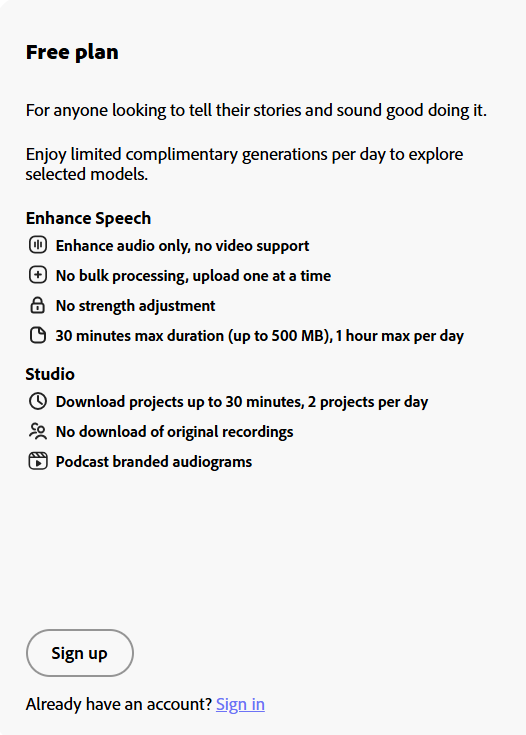
- Removes background noise and echo from voice recordings
- Free tier handles audio files up to 30 minutes and 500 MB, with one hour of enhancement per day
- One file at a time, with no strength adjustment on the free plan
Adobe Podcast makes a cheap microphone sound far better than it should, and viewers forgive rough video faster than bad audio. Upload a voiceover, let it process, and download the cleaned file for your editor. One episode a day under 30 minutes fits comfortably in the free tier.
Publish: Distribute and Capture Your Audience
Once your content is made, it still has to reach people, and the audience that lasts is the one you can reach without an algorithm. This is where content creation turns into content marketing. The three tools below handle scheduling, one link for every profile, and an email list you own.
Buffer
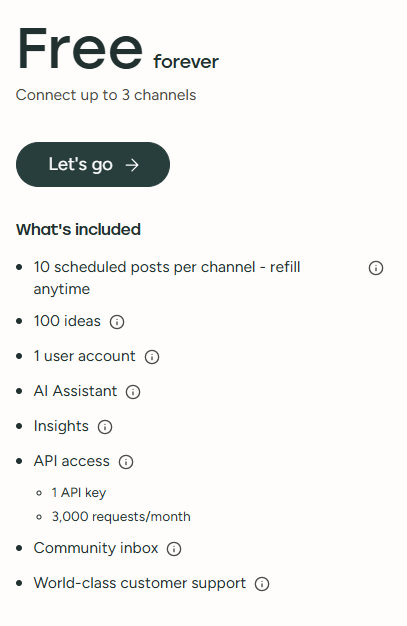
- Free forever, with up to 3 connected channels
- 10 scheduled posts per channel, refilled as each one publishes
- Lifetime limit of 8 unique channel connections on the free plan, even if you disconnect and reconnect
A scheduler starts paying off once you’re posting to two or more platforms on a regular schedule, not before. Buffer’s free plan covers that stage. Each channel you connect gives Buffer access to that account, so review your connected apps occasionally and remove any you no longer use. For a full comparison of paid options, see How to Use Social Media Scheduling Tools.
Beacons.ai
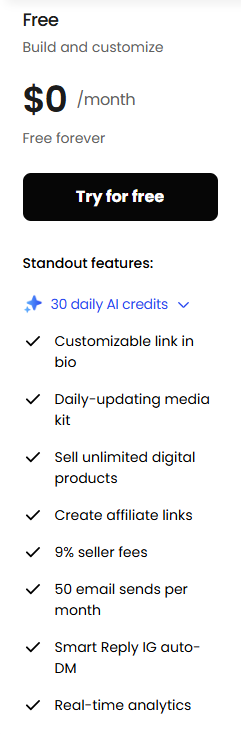
- Free forever, with a customizable link-in-bio page and media kit
- Sell unlimited digital products and create affiliate links, with a 9% seller fee on the free plan
- 50 email sends per month on the free plan
A link-in-bio page gives every platform you post on a single place to send people. Beacons has a free plan that covers this, and I walk through it in more detail in Affiliate Marketing Without a Website. The free plan’s tradeoffs show up when you start selling or emailing regularly. Once you hit the monthly email cap, a dedicated tool like Systeme.io goes further.
Systeme.io
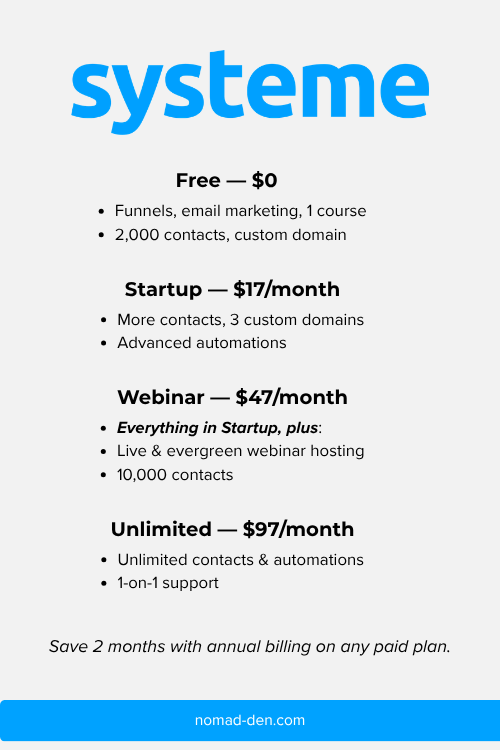
- Free plan includes 2,000 contacts, 3 funnels, 1 course, unlimited emails, and 0% transaction fees, with no expiration
- Landing pages and email in one account
- Two-factor authentication for logins
Content brings people to you, but an email list is the audience you keep if a platform changes its rules or your account disappears. Systeme.io is where I send viewers who want more than a video: a landing page, a free resource, and an email sequence, all on the free plan. If you’re setting it up for the first time, The Only Free Tools You Need to Launch and Build an Online Business (Free) With Systeme.io cover the setup.
What Free Tools Cost You Instead of Money
Free tools aren’t free; you pay with permissions, data, or access to other accounts. I went through my own accounts and checked four things for each tool. Here’s what I found:
| Tool | 2FA available | Your content used for AI training | Requires another platform’s login | Export your work |
|---|---|---|---|---|
| Systeme.io | Yes | Not mentioned in privacy policy | No | Contacts only (CSV) |
| Canva | Yes | Two settings; both on in my account | No | Yes |
| CapCut | Not found; depends on account login | Yes, per privacy policy | No | Yes, videos and project files |
| Instagram Edits | Through Instagram | Public posts yes, per Meta | Yes, Instagram | Yes |
| DaVinci Resolve | Yes, for optional Blackmagic Cloud account | No (stated by Blackmagic) | No | Yes, files on your drive |
| Buffer | Yes | Not stated; AI Assistant uses OpenAI | Connects to each channel | Not applicable |
Many of these tools also let you sign in with Google, Facebook, Microsoft, or Apple instead of creating a separate password. When you do, that account becomes your login, so your security depends on it, not on the tool. It’s convenient, but if that one account is compromised, every tool connected to it is exposed too.
The answers ranged from plainly stated to hard to find. Blackmagic says outright that it won’t train AI on your media, and Canva puts its AI settings where you can see them. CapCut’s privacy policy says it can use your content to train its models, including content you never save or publish. Systeme.io and Buffer don’t address AI training at all.
None of these tradeoffs means you should avoid a tool. They’re about knowing what happens to your content and personal data once you hand it over, so you can adjust your settings, decide what not to upload, and give the strongest protection to the accounts that matter most.
Protect: Your Accounts, Content, and Comments
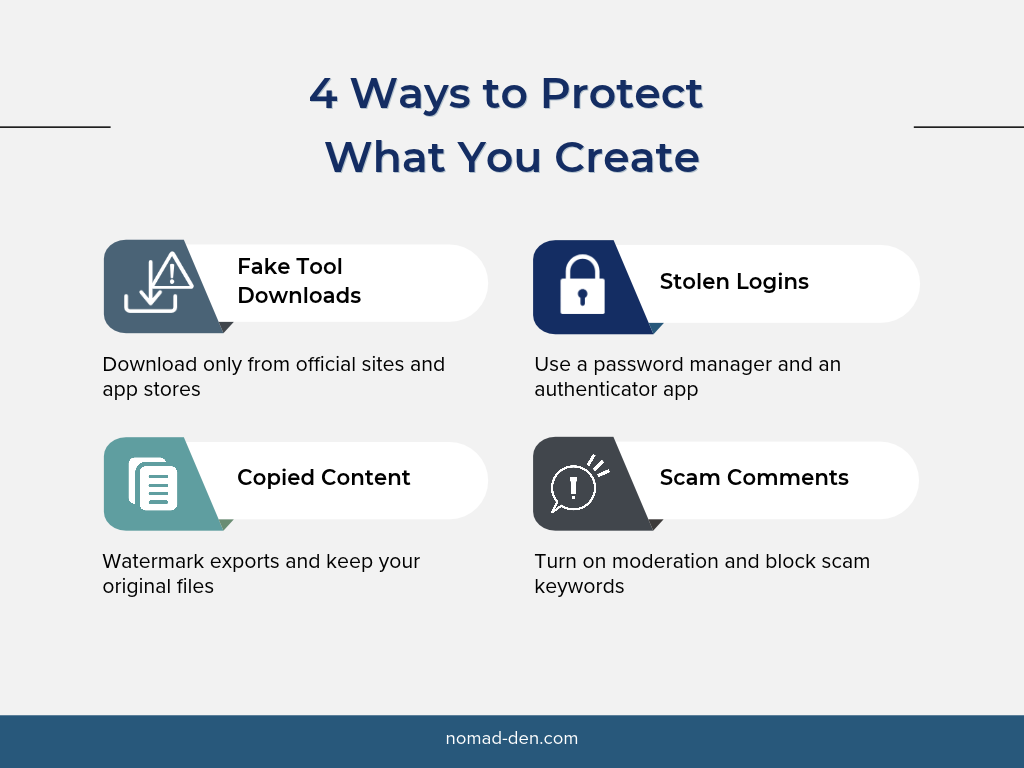
Free tools help you build an audience, and an audience is exactly what scammers and attackers want access to. The four risks below are the ones creators run into most: fake tool downloads, stolen logins, copied content, and scam comments aimed at your viewers.
Fake Tool Downloads
Fake versions of popular creator tools are a common way to spread malware, and they target creators specifically. Researchers at Mandiant and Google Cloud tracked a group that has spread thousands of ads, fake websites, and social media posts since mid-2024, promising access to AI video tools such as Luma AI, Canva Dream Lab, and Kling AI.
In a related campaign, a file disguised as a video was actually a repurposed copy of CapCut that installed infostealer malware, which steals browser passwords, session cookies, and documents. Researchers noted the attackers aimed at a newer, more trusting audience: creators and small businesses exploring AI tools.
The best way to avoid these situations in the future is to download tools from the official website or official app store only. Never use a link from an ad, a comment, or an email offering a “free premium version.”
Stolen Logins and Hijacked Accounts
Two-factor authentication is necessary, but it doesn’t stop every account takeover. Google’s Threat Analysis Group found attackers using stolen session cookies to take over YouTube creator accounts, bypassing 2FA, then changing passwords and recovery details. Some hijacked channels sold for $3 to $4,000, depending on subscriber count.
Most of these attacks started with a fake sponsorship offer asking the creator to download and test software. That’s why safe downloads and account security go together.
The free tools in this post add up to eight or more logins, and reusing passwords across them is how one breach becomes several. A password manager solves that. NordPass has a free plan that saves and fills in your passwords, but it only works on one device. If you edit on both your phone and your laptop, you’ll need NordPass Premium or a free alternative like Bitwarden that syncs across devices. Pair either with an authenticator app like 2FAS. For a full comparison, see Best Password Managers & Why You Need One.
Keep a contact email on your channel so subscribers and brands can reach you, but make it a dedicated business address, and consider a data removal service like Incogni so that address can’t be traced back to your home address or personal accounts.

Copied Content and AI Lookalikes
Copying a creator’s work has always been easy, and AI has made it nearly effortless. I’ve seen it happen many times on TikTok. Popular clips get reposted with an AI-generated person, or even an animal, performing the video instead. Everything else stays the same: the movements, timing, music, and often the voice. Some of those versions are people joining a trend, which platforms encourage. Others are theft, because the original creator loses views and engagement to someone passing the work off as their own.
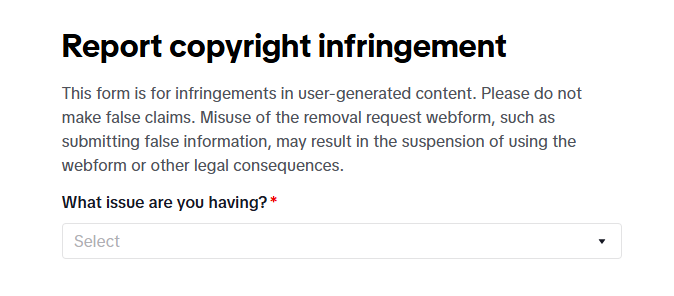
Pinterest has been worse for me. Many of my pins were copied and reposted on other accounts, some unchanged and some lightly edited. I reported about 20 of them through Pinterest’s formal copyright form, not the quick “Report Pin” button. Pinterest accepted every report, yet nothing really changed as I kept seeing copies of my pins when I published new content or searched for pins to save to my boards.
I’m not the only one. On Pinterest’s own business community forum, creators describe reported pins being removed while the accounts behind them stay active and simply re-upload the stolen content.
Reporting still matters, because it builds a record against repeat offenders. Pins removed through copyright reports count as strikes under Pinterest’s repeat infringer policy. Pinterest’s help center also suggests opening your report with a request to remove all pins that contain the image. That catches more copies than reporting one pin at a time. Just don’t expect a report to end the problem.
On TikTok, you can report copies by tapping Report, then Counterfeits and intellectual property, then Intellectual property violation, or use TikTok’s copyright report form. In my experience, though, copied clips keep spreading long after the original is posted, so treat a report as one step, not a fix.
Platform protections haven’t caught up with this. YouTube opened its Likeness Detection tool to all users 18 and older in May 2026, inside YouTube Studio. It currently covers only facial likeness, not AI-generated voice clones. That helps if someone clones your face. It doesn’t help when someone keeps your performance and replaces your face, which is the version I keep seeing.
A few free habits make any report stronger. Add a visible handle watermark to exports in Canva, CapCut, or Edits. Keep your raw, dated project files as proof you made the original. Report the account as well as the individual post when the same account copies you repeatedly.
Scam Comments and Bot Replies
Built-in comment moderation is a free tool most creators never configure. On videos about making money online or personal finance, bot comments often fill up the comments section with fake testimonials like “I’m so glad I found her, she helped me,” usually pushing crypto or a “financial advisor.” Some creators say they’ve given up trying to keep up and now pin a comment or video, telling their audience they “just can’t keep up.” It really depends on the creator; some are hit harder than others.
You don’t have to fight it by hand. YouTube Studio lets you choose how strictly it screens comments. Basic holds comments that may be spam, self-promotion, gibberish, or inappropriate. You can also hold comments containing links or any word on your blocked words list, and held comments stay reviewable for up to 60 days.
Some large creators are getting ahead of this. When I commented on a few of Alex Hormozi’s YouTube videos, a warning appeared saying scam accounts would be blocked or banned. You can do something similar on your own channel by adding the words scammers rely on to your blocked words list. Requests to move a conversation to Telegram or WhatsApp are a reliable sign of a scam comment, so those two names make a good start.
FAQs
Start Free, Then Protect What You Build
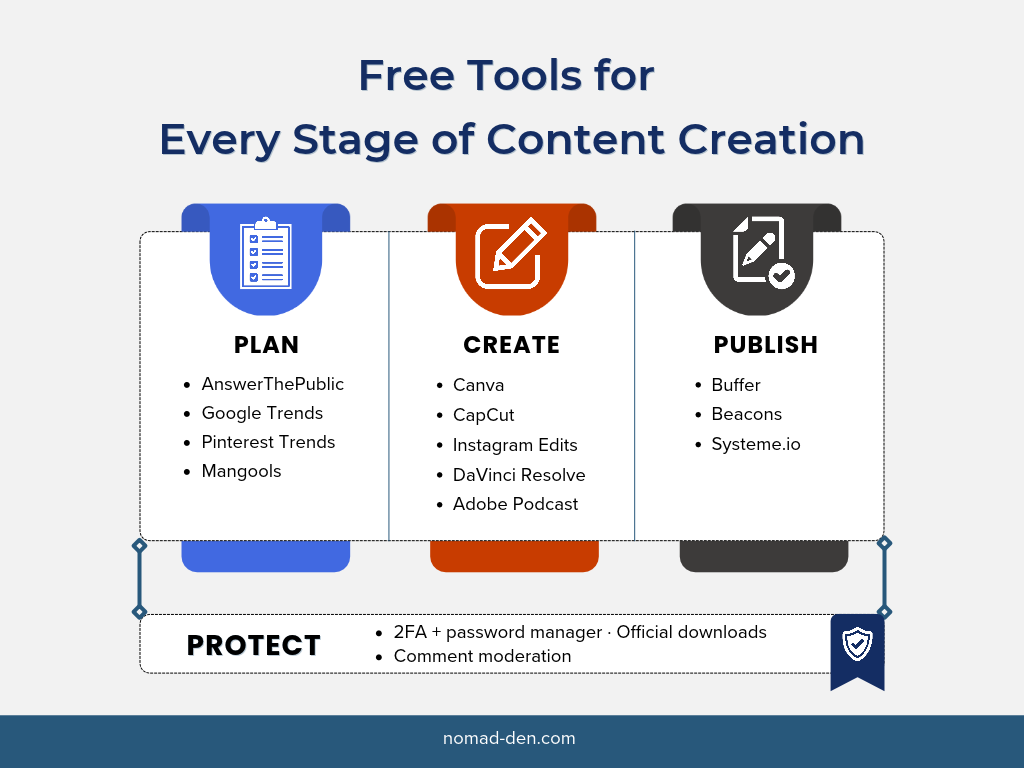
You can plan, create, and publish content for months without paying for a single tool. The free tiers here cover topic research, design, short- and long-form video, audio cleanup, scheduling, and email. That’s every stage of a working content routine.
The part that costs nothing and gets skipped most is protection. Free tools take payment in other ways: rights to your content, data for AI training, or access to the accounts you connect. A few minutes spent on privacy settings, a password manager, 2FA, and comment filters protects the audience you spend months building.
Upgrade when your results demand it, not when a pricing page suggests it. Until then, put your energy into the one asset no platform can take away from you: your email list.
Start your free Systeme.io account and build an audience you own.
Some links in this post may be affiliate links. I may earn a commission at no extra cost to you. Learn more here.
Related Posts
How to Use Social Media Scheduling Tools to Grow Without Being Online 24/7
There’s a version of social media growth that gets sold constantly: post more, post everywhere,…
SEO Tools for Beginners (Free + Paid): The Only Stack You Need (2026)
As long as people are searching for information online, SEO (search engine optimization) will remain…
Digital Marketing Guide: Where to Start and How It Works
Digital marketing is the promotion of products or services using digital channels such as search…
Top 5 Tools Every Online Business Owner Needs
Most online businesses are built on five foundational tool categories: a domain and hosting, a…
Build an Online Business (Free) With Systeme.io
Systeme.io is a free all-in-one marketing platform that consolidates the tools most online entrepreneurs need…
Email Marketing Essentials: Platforms, Automation, and List Hygiene
Email marketing means sending targeted messages directly to people who’ve opted in to hear from…